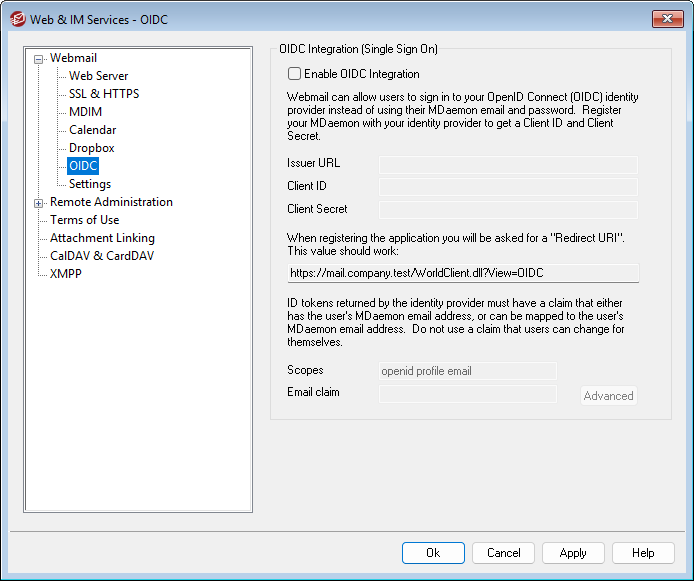
OIDC Integration (Single Sign On)
MDaemon Webmail supports Single Sign On (SSO) using OpenID Connect (OIDC). Instead of signing in to Webmail with their MDaemon email address and password, users can click the Sign In with SSO button to sign in through your OIDC identity provider (IdP), such as Google or Microsoft Azure/Entra ID.
To set this up, you will first need to create an app using your IdP's management interface, and provide your Webmail Redirect URI (see below) when doing so. Then, configure Webmail's OIDC settings using the options below.
Enable OIDC Integration
When this option is enabled, a Sign In with SSO button will appear on the Webmail sign-in page. Users can click that button to sign in to their Webmail account by authenticating through your selected IdP rather than providing their MDaemon email address and password.
Issuer URL
This text field is for the base URL that you get from your OIDC identity provider. It is used by MDaemon to discover the IdP's configuration and other data, like user info and public keys. Do not include the "/.well-known/openid-configuration" part that is commonly appended to the Issuer URL. Depending on your IdP, the URL will look something like this: https://login.microsoftonline.com/<tenant_id>/v2.0, https://accounts.google.com, or https://<your-domain>.okta.com .
Client ID
This is your unique Client ID obtained from your IdP during app registration.
Client Secret
This field is for the secret key generated by the IdP during registration. It is used with the Client ID to authenticate MDaemon as a trusted client when exchanging authorization codes for access tokens. Some IdPs allow client secrets to expire, so you may need to replace it periodically.
When you are registering your OIDC app with your IdP, you will be asked for your Redirect URI. The URI provided here is built from your Default Domain's SMTP host name. For example: https://mail.example.com/WorldClient.dll?View=OIDC
Scopes
Scopes determine which specific sets of data points the IdP shares. The default values here are standard for OIDC: openid enables OIDC flow and is required, profile provides basic user info (e.g., preferred_username), and email shares the user's email address. You can add or modify scopes as needed based on your particular setup or IdP requirements.
Email Claim
This field is for specifying the name of the claim (key-value pair) that contains the data you need to identify the MDaemon user who is signing in. This would most commonly be set to e.g., email, preferred_username, sub, or oid (Azure/Entra ID). The simplest setup is to specify a claim that you know will contain the user's MDaemon email address, such as email or a custom created claim, if possible. If you choose "sub" or "oid", then that claim will not contain an email address. Instead, it will contain a unique code or identifier for that user, which will require you to use the options in the OIDC Email Claims section below to associate that sub or oid identifier with the correct MDaemon user.
|
When specifying the Email Claim, do not use a claim that the user is able to edit through a self-service profile page. For example, if your particular IdP setup has a "secondary_email" key that is user editable, and you chose that as your Email Claim, then any user could change that email address to the address of another user on your server and then gain access to that user's email account. Always ensure that you choose a claim that can only be edited by an admin. |

The options in this section are used to map custom claim values from the IdP to specific email addresses in MDaemon. This is useful when some or all of the email addresses contained in the IdP's email claim don't correspond to your MDaemon user email addresses. In that case, you could use these options to map the non-MDaemon email address of each user to their MDaemon address. The same would be true if you used preferred_username as your Email Claim but the username doesn't always match the MDaemon email address. You will also use this feature if you choose to use the sub (or oid in Azure/Entra ID) claim in your Email Claim option and then map each user's unique identifier to their MDaemon email account.
To map a claim value to a specific user:
1.Use your IdP console or other tool to look up the user in question.
2.Locate the claim value of whatever Email Claim you have specified above.
3.Copy the claim's value and paste it into the Claim Value field.
4.Enter the corresponding MDaemon user's Email address.
5.Click Add.
6.Click Save.
To edit an entry:
1.Click the entry you wish to edit.
2.Click Edit.
3.Make any desired changes.
4.Click Update.
5.Click Save.
To delete an entry:
1.Click the entry you wish to delete.
2.Click Delete.
3.Click Save.