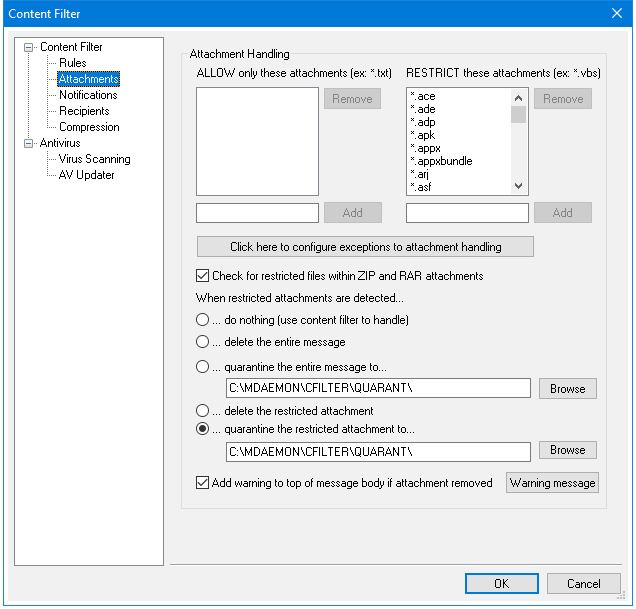
Use this page to specify attachments that you wish to classify as allowed or restricted. Messages with restricted attachments can be deleted or quarantined, or just the attachments can be deleted or quarantined. Alternatively, you can pass messages with attachments to the Content Filter for processing, and then use various Content Filter rules such as: "If the MESSAGE has Attachment(s)" or "If there's an attachment with a CONTENT-TYPE of...".
Attachment Handling
Files or file-types specified in the "Restrict these files" list can be stripped from messages and deleted or quarantined automatically. If you list any files in the "Allow these files only" list, then only those files listed will be permitted and then passed on to the "Restrict these files" list for further comparison — all other attachments will be deleted or quarantined. Alternatively, rather than choosing to delete or quarantine just the restricted attachments, you can delete or quarantine the entire message instead. When you elect to strip restricted attachments, MDaemon will continue delivering the message normally after the attachment is removed. Use the "Add warning to top of message body if attachment removed" option if you wish to let the recipient know that the restricted attachment was removed. You can also use the options on the Notifications page to cause a notification message to be sent to various addresses when a restricted attachment is encountered.
Wildcards are permitted in list entries. An entry of "*.exe", for example, would cause all attachments ending with the EXE file extension to be allowed or removed. To add an entry to either of the lists, type the filename in the space provided and the click Add.
Click here to configure exceptions to attachment handling
Click this button to open the Restricted Attachments Exclusions dialog, to specify email addresses that you wish to exclude from attachment restriction monitoring. You can set both global exclusions and specific file exclusions based on the the sender or recipient of the message.
Restricted Attachments Exclusions
Global Exclusions
Exclude messages TO these addresses
MDaemon will not apply the attachment restrictions to messages sent TO these addresses.
Exclude messages FROM these addresses
MDaemon will not apply the attachment restrictions to messages sent FROM these addresses.
Sender File Exclusions
Exclude these files for these senders
If you wish to exempt specific files or file types from Attachment Restrictions when those files are being sent FROM a specific address, specify the email address and the file names here. Wildcards "?" and "*" are permitted. For example, "Postmaster@???.*.com" and "*.zip".
Recipient File Exclusions
Exclude these files for these recipients
If you wish to exempt specific files or file types from Attachment Restrictions when those files are being sent TO a specific address, specify the email address and the file names here. Wildcards "?" and "*" are permitted. For example, "Postmaster@???.*.com" and "*.zip".
Quarantine
Check for restricted files within ZIP and RAR attachments
Click this option if you wish to scan the contents of Zip, 7-Zip, and RAR compressed files for restricted attachments. Additionally, any Content Filter rule set to look for a particular filename will be triggered if a matching file is found within a compressed attachment.
When restricted attachments are detected...
Click the desired action to be taken when a message includes a restricted attachment.
...do nothing (use content filter to handle)
Choose this option if you do not wish to use these settings to determine the action taken when a restricted attachment is detected, but instead wish to base any attachment-related actions on Content Filter rules, such as: "If the MESSAGE has Attachment(s)" or "If there's an attachment with a CONTENT-TYPE of...". You could also use the "If the user defined [# HEADER] contains" rule condition to search for the "X-CFilter-Restricted-Files" header, which gets added to messages with restricted attachments.
...delete the entire message
This option will delete the entire message when it contains a restricted attachment.
...quarantine the entire message to...
This option will cause messages with restricted attachments to be quarantined to the specified location.
...delete the restricted attachment
Choose this option if you wish to delete any restricted attachments rather than delete the entire message.
...quarantine the restricted attachment to...
Click this option and specify a location if you wish to quarantine restricted attachments to a specific location rather than simply delete them. This is the default setting.
Add warning to top of message body if attachment is removed
When MDaemon removes an attachment from a message, for example because a virus was detected, it will add a warning message to the top of the message body. Click the Warning button if you wish to review or modify that message's template. This option is enabled by default.